
Google Shopping can surface products across multiple Google destinations, including Shopping ads, free listings, Google Images, and Search. But simply getting products approved in Merchant Center doesn’t guarantee visibility or sales. Poor product data can limit impressions, attract irrelevant searches, weaken CTR, and waste ad spend.
This guide shows how to identify those gaps, optimize the product data that matters, and measure whether your changes improve Shopping performance.
What Is Google Shopping Feed Optimization?
Google Shopping feed optimization is the process of making your product data more useful to Google’s systems and, ultimately, to shoppers. Merchant Center approval confirms that a product can appear, but it says little about how effectively that product will compete for relevant visibility.
Think of the feed as the layer between your product catalog and Google Shopping:
Your catalog → Product feed → Google understands the offer → Product enters relevant auctions → Shopper sees the listing
Each step depends on the quality of the information that came before it. If Google receives unclear, incomplete, or inaccurate data, the problem can carry through to where and how the product appears.
That creates an important distinction:
| Feed status | What it tells you |
| Technically valid | The product meets the requirements to participate |
| Well optimized | The feed gives Google clear, useful product information |
| Commercially effective | That information supports the visibility and sales goals of the business |
A technically valid feed gets products into the system. Feed optimization focuses on what happens after that.
How to Optimize Your Google Shopping Feed
Effective Google Shopping feed optimization is an ongoing process: start by identifying where performance is being lost, improve the product data behind it, and measure whether those changes actually drive better results.
1. Audit Your Google Shopping Feed Before Optimizing It
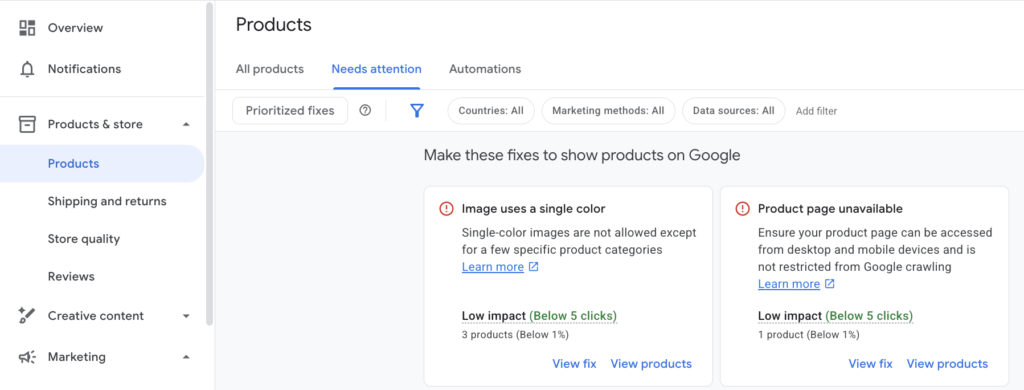
Before you touch a single title, attribute, or campaign, get a baseline. Start with Merchant Center health: which products are approved, limited, or disapproved; where attributes are missing or incomplete; any price and availability problems; image or identifier flags; and where your products are actually showing up in ads.
Then group products by performance:
| Pattern | What to Check |
| No impressions | Eligibility, demand, categorization, titles, and identifiers First, however, confirm the product is actually included in an active campaign and not budget- or bid-constrained before assuming a feed cause. |
| Impressions but few clicks | Titles, images, pricing, and relevance |
| Clicks but no conversions | Search-term quality, landing pages, pricing, and availability |
| Strong performers | Opportunities to increase visibility or budget |
Write down the numbers that matter (impressions, CTR, conversion rate, revenue, ROAS) before you change anything major. The idea is simple: pin down the real problem first, then fix the part of the feed most likely to solve it.
2. Improve Product Data Quality and Categorization
With the big Merchant Center problems behind you, the next job is making sure Google knows exactly what each product is. The more precise and accurate your data, the less Google is left to guess.
Google’s product data specification covers a lot of ground: identification, categorization, variants, product characteristics, pricing, availability, shipping, imagery, and a long list of category-specific attributes. That’s not an invitation to fill every field with whatever you have on hand. Focus on the attributes that genuinely describe your products and set them apart.
Product Type
The product_type attribute is where you get to use your own taxonomy. Google Product Category follows Google’s fixed list; Product Type follows whatever categorization makes sense for your catalog. You can also lean on those values to organize, bid, and report inside your Shopping campaigns.
For example:
Weak:
Jewelry > Earrings
More useful:
Jewelry > Earrings > Drop Earrings > Sterling Silver Drop Earrings
The second version tells Google far more about the product. Build these paths from broad to specific, and keep the naming consistent across the whole catalog. That consistency pays off later for reporting, campaign segmentation, product analysis, feed rules, and category-level optimization.

Google Product Category
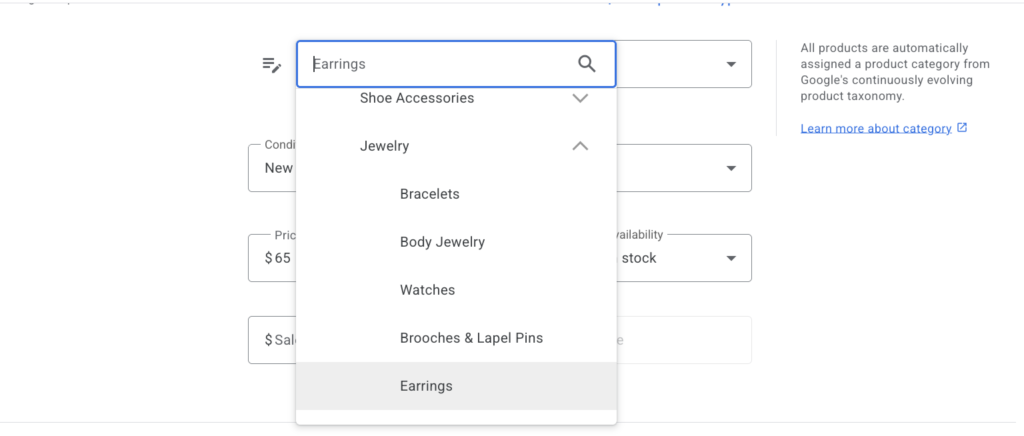
Google auto-assigns a category when you leave the field blank, guessing one from your title, description, and other data. So on a large catalog, the job usually isn’t to populate every value from scratch; it’s to audit those guesses, spot-check the categories that matter, and correct the obvious misclassifications and strategically important products.
Getting it right matters more than it looks, because the category a product lands in switches on category-specific rules. Put a product under Apparel & Accessories, for example, and a set of variant attributes becomes required in several major markets, while other categories carry extra required fields or policy rules of their own, as with age-restricted or alcohol listings that have to be categorized correctly to stay compliant. In other words, Google Product Category is not just a filing decision. It is part of what determines which attributes become mandatory, which is exactly what the next section covers.
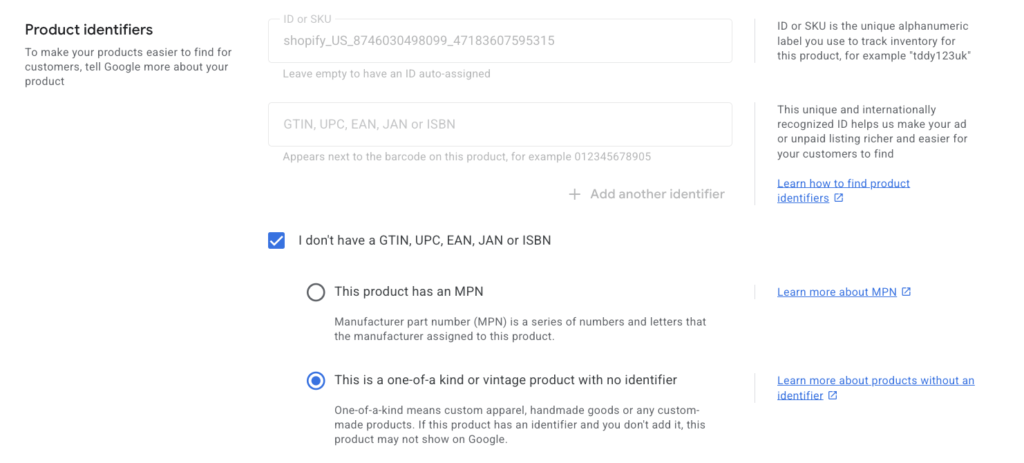
Two kinds of attributes do the work here. Identifiers tie your product to a known item and link its variants together, mostly Google-facing plumbing the shopper never sees: GTIN and MPN match your product to Google’s catalogue, and item group ID links its variants. Brand sits alongside them as the third unique identifier, but it does double duty: it also helps shoppers recognise and search for what you sell.

Then there are the attributes that describe the product itself, the ones a shopper uses to pick one option over another or to know it’s the right fit: color, size, material, pattern, gender, and age group.
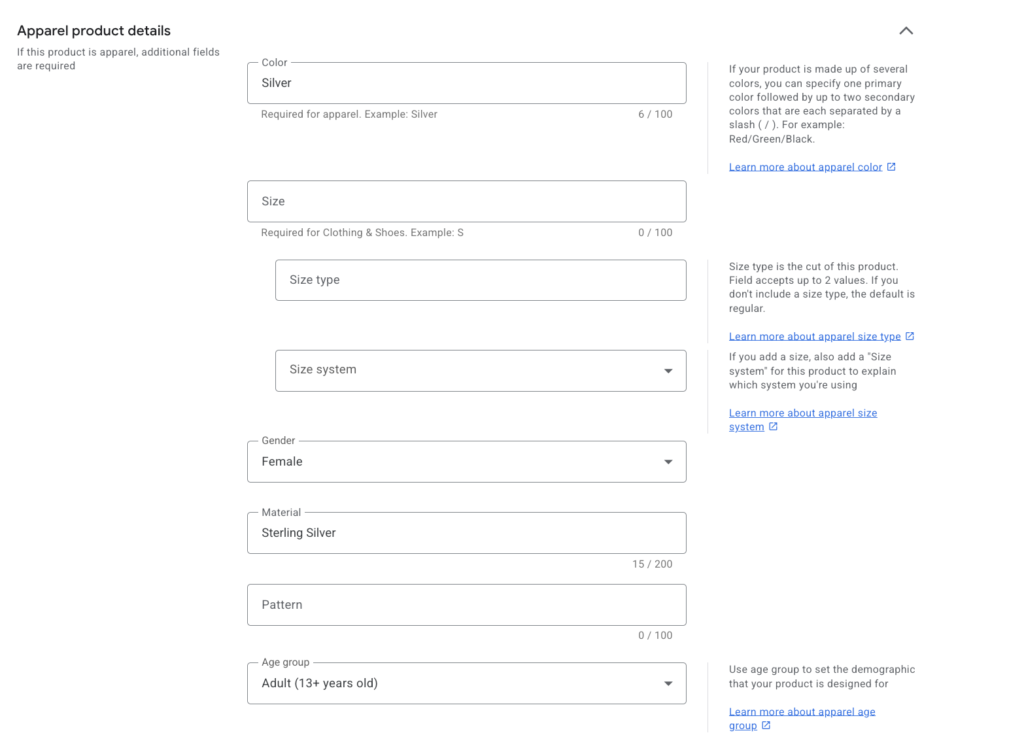
How complete a feed needs to be depends on the category. In apparel, color, size, gender, and age group aren’t just nice-to-haves. They’re required for Apparel & Accessories products in several markets, including the US, UK, Germany, France, Japan, and Brazil, and a missing value can stop an item from showing at all. Other categories lean on a different set of attributes entirely.
The question to ask is:
Does the feed give Google enough accurate information to understand why this SKU is different from other similar SKUs?
3. Optimize Product Titles and Descriptions With Search Data
Nothing in a Shopping listing works harder than the title. It has to speak to two audiences at once: Google’s matching systems and a shopper skimming a page of results. Google leans on it heavily when deciding which searches a product can appear for, so a vague or generic title quietly caps how often that product shows up in the first place.
Put important information early
Don’t assume shoppers will read every character. Put the information that identifies the product right at the front.
Instead of:
Silver Earrings
consider:
Hand-Made Cassius Silver Bridal Earrings – Sterling Silver, Faux Pearls
The second version tells both Google and the shopper far more. Google’s advice is to work in the attributes that set a product apart, such as brand, age group, gender, size, and color, wherever they’re relevant.
Build different title formulas for different categories
No single title formula fits every product. Google’s own recommended baseline is Brand + Product Type + Attributes, and Google publishes best-practice structures for each major category:
| Category | Recommended structure |
| Apparel | Brand + Gender + Product Type + Attributes (Color, Size, Material) |
| Consumable | Brand + Product Type + Attributes (Weight, Count) |
| Hard Goods | Brand + Product + Attributes (Size, Weight, Quantity) |
| Electronics | Brand + Attribute + Product Type + Model |
| Seasonal | Occasion + Product Type + Attributes |
| Books | Title + Type + Format (Hardcover, eBook) + Author |
Order the elements the way people in that category actually search for and recognize what they’re buying.
Use search-term data
Here’s where it gets interesting. Pull your actual Shopping search-term data, see how customers really describe what they’re after, and feed those words back into your product information.
Suppose your product is called:
Cassius Bridal Earrings
But search-term data consistently includes:
- sterling silver bridal earrings
- faux pearl wedding earrings
- handmade pearl drop earrings
- silver pearl earrings for brides
If the earrings really are sterling silver, handmade, and set with faux pearls but none of those words appear anywhere in the feed, that’s your opening: add the accurate details to the right attributes and to the title. Watch for the modifiers that keep coming up: material, color, style, occasion, product type, and any other genuine product characteristic.
Don’t paste popular keywords into titles wholesale. Let the search data teach you how customers talk about your products, then make sure the feed reflects those characteristics honestly.
Avoid title optimization mistakes
Do not use:
- Keyword stuffing
- Irrelevant search terms
- Irrelevant or unaffiliated brand names: brand names that don’t apply to the product
- ALL CAPS
- Promotional messages
- Unsupported claims
- Artificial repetition
These aren’t just matters of taste. Google’s Shopping policies specifically prohibit promotional language and unusual capitalization in titles, and ignoring that can get a product disapproved.
Optimize product descriptions
The description is where detail that would clutter a title can breathe. A good one covers materials, key features, dimensions, intended uses, care instructions, technical specs, and anything else a buyer genuinely wants to know.
Resist the urge to paste one supplier description across hundreds of products, and don’t keyword-stuff or let AI invent details that aren’t in your source data. The same editorial rules that govern titles apply here too: no promotional text, links, or HTML.
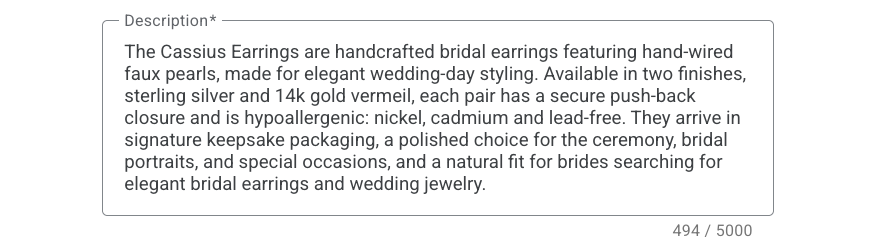
The description should answer the customer’s practical question:
Is this the right product for me?
4. Improve Images, Pricing, Availability, and Landing-Page Consistency
Feed optimization isn’t only about words. What a shopper actually sees is a bundle: image, title, price, merchant, offer. So when a product pulls plenty of impressions but a weak CTR, its presentation is the first place to look.
Improve product images
The main image has one job: make the product instantly clear.
Check that:
- The advertised product is clearly visible.
- The image accurately represents the variant.
- Resolution meets Google’s minimums: currently at least 100×100 px for non-apparel and 250×250 px for apparel, though Google is moving to a single 500×500 px minimum from 31 January 2027, with warnings already appearing on smaller images. Aim for 1500×1500 px or larger, which is what Google recommends.
- The product occupies useful visual space.
- There is no unnecessary clutter.
Extra images can fill in the rest of the story: other angles, close-up details, a sense of scale, lifestyle shots, packaging, the product in use. And once a product gets enough traffic, you can test image changes instead of guessing at them.
Keep price and availability accurate
Price and stock data has to stay in lockstep with your website. Keep an eye on regular price, sale price, overall availability, variant-level availability, and anything running low or out of stock.
Google recommends keeping price and availability fresh through automated delivery, the Merchant API, or structured data. Structured data on the product page itself also lets Google pull current product and offer details straight from your site.
Keep landing pages consistent with the feed
Nobody should click a Shopping result and land on a different price, a sold-out variant, the wrong product, mismatched imagery, or shipping limits they didn’t expect. No amount of feed work fixes a broken purchase experience. The listing and the landing page have to tell the same story. And a price or availability mismatch isn’t just a soft hit to CTR: Google crawls the page and will disapprove the product outright until the two line up, which is exactly the kind of eligibility issue the Section 1 audit exists to catch.
5. Use Business Data and Custom Labels to Rank Products
The biggest blind spot in basic feed optimization is that it treats every product as equally important.
They aren’t.
Two products can pull identical revenue and still differ wildly in margin, stock levels, return rates, strategic weight, and the lifetime value of the customers they bring in. A stronger feed strategy brings that business context in.
| Segment by | Example tiers |
| Margin | High / Medium / Low |
| Performance | Bestseller / Average / Low performer |
| Inventory | Overstock / Healthy / Low-stock |
| Lifecycle | New / Evergreen / Seasonal / Clearance |
| Business priority | Hero / Growth / Test / Low-priority |
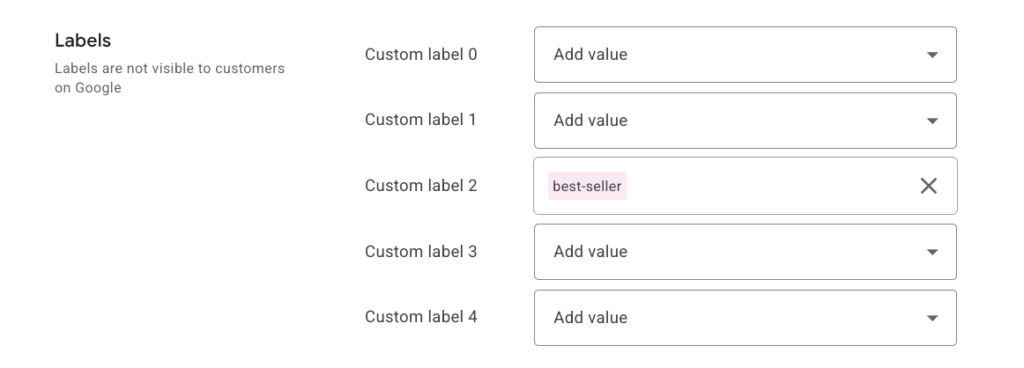
Each of these segments can be passed into a custom label, which is what lets you use it to segment and steer your campaigns.
With that in place, you can build campaigns and reporting around commercial reality instead of leaning only on the conversion value Google happens to observe.
Not every product deserves the same paid exposure
On a large catalog, there’s a useful distinction to draw: you can advertise a deliberately chosen subset of products while leaving the wider catalog available for Google’s free listings.
Some products deserve a deliberate call on how much paid advertising they get, rather than being promoted by default: very low-margin items, low-stock lines, gift cards, samples, anything with fulfillment constraints, and chronic underperformers.
That said, don’t cut a product loose just because its direct ROAS looks poor.
Find out why first.
It might be quietly assisting other sales, or it might do better under a different campaign structure, a different bid target, or as a customer-acquisition play; alternatively, the real culprit might be weak feed data rather than weak demand.
The point isn’t to shrink the catalog. It’s to steer paid budget toward the products that actually earn it.
Put your segments to work in campaigns
Segments only earn their keep once your campaigns act on them. In Standard Shopping, product data lets you subdivide product groups to control bids (and split budgets across separate campaigns) for the groups that matter most, like high-margin lines, bestsellers, clearance, or new arrivals. In Performance Max, custom labels slice the catalog into campaigns or asset groups, but if you genuinely need different budgets or ROAS targets, that means separate Performance Max campaigns, not sub-groups.
Don’t assume every group deserves its own campaign, though. Break products out only when they genuinely call for different budgets, ROAS targets, creative, audiences, or objectives; otherwise the extra structure costs more to manage than it’s worth. The feed should make useful segmentation possible without pushing you into needless fragmentation.
6. Use AI and Automation Without Losing Feed Control
AI can make all of this scale, especially if you’re managing thousands or hundreds of thousands of SKUs. It’s genuinely useful for restructuring titles, normalizing attribute values, generating Product Type hierarchies, cleaning up descriptions, helping with categorization, surfacing missing attributes, and running quality checks across the catalog.
The line that matters is between transforming information you already have and inventing information you don’t. AI should never conjure materials, dimensions, certifications, compatibility, specs, performance claims, or features out of thin air.
Prompts that keep AI grounded
Every starter prompt below follows the same rule: use only the data you hand it, never invent, and flag gaps rather than paper over them. Treat whatever comes back as a draft, and check it against your source data before any of it reaches the feed.
| Task | Example prompt (grounded in your own data) |
| Rewrite a title | Rewrite this product’s Shopping title to the format Brand + Product Type + key attributes (material, color, size). Use only the attributes I provide below. Do not add anything not present in the data, and if a field is missing, leave it out rather than guessing. Then list any attributes you’d recommend I supply. Product data: [paste] |
| Normalize attributes | Standardize these attribute values to a consistent format (e.g. ‘Sterling Silver 925’ → ‘Sterling Silver’; ‘sm/med/lg’ → ‘S / M / L’). Change wording only; never change the underlying meaning or invent a value. Flag anything you can’t confidently normalize. Data: [paste] |
| Build a Product Type path | From this product’s title, description, and Google Product Category, propose a product_type path from broad to specific (e.g. Jewelry > Women’s Jewelry > Earrings > Hoop Earrings), using only information in the provided fields. If the data is too thin to place it precisely, return your best partial path and note what’s uncertain. Data: [paste] |
| Audit for gaps | Review these SKUs against Google’s required and recommended attributes for their category and list what’s missing or weak per SKU. Do not fill the gaps; only identify them so I can source accurate values. Data: [paste] |
Do not surrender feed control entirely to automation
Automation can also keep your data current through website crawling, structured data, APIs, and Merchant Center’s own features. But automated discovery shouldn’t mean nobody’s watching. You still want to know your primary source of product data, which fields are being overwritten, how price and availability get updated, whether discontinued products are still discoverable, and how all of it surfaces in the Merchant Center.
Automation should cut down the busywork, not turn your catalog into a black box.
7. Test Feed Optimizations and Measure Their Impact
Feed optimization becomes far more valuable when you treat it as experimentation rather than a string of undocumented tweaks. Audit first, make a controlled change, then re-audit: that loop works best. Here’s a simple framework.
Step 1: Identify the problem
Example:
A product category has strong demand but low non-brand visibility.
Step 2: Form a hypothesis
For example:
Adding material and specific product type information to titles will increase relevant non-brand visibility.
Step 3: Choose a defined product group
Say, 10 comparable SKUs. Resist the urge to change the whole catalog at once.
Step 4: Record the baseline
Capture:
- Impressions
- Clicks
- CTR
- Conversion rate
- Revenue
- ROAS
Step 5: Make one significant change
For example, update product titles.
Do not simultaneously change:
- Titles
- Descriptions
- Images
- Campaign structure
- Bidding strategy
Change everything at once, and you’ll never know which change actually moved the needle.
Step 6: Measure the outcome
Compare the group you changed against its own prior performance, or better, where you can manage it, against a comparable group you left alone.
Give the test time before you judge it. After a feed change, Google re-crawls and reprocesses your products, and the changed items need time to settle back into the auction and build up fresh performance data, so read results over a long enough window (roughly the three to four weeks Google’s own experiments run), not after a few days. And the real gate is conversion volume, not SKU count: the 10 SKUs in Step 3 are only an illustration, so make sure the group generates enough clicks and conversions to reach a trustworthy result before you act.
Step 7: Roll out successful changes
If it produced a real improvement, roll the lesson out more widely. If it didn’t, note what you learned and move on to the next hypothesis.
Measure more than ROAS
Different feed changes move different parts of the funnel, so don’t judge everything by one number. Watch visibility (how many products get impressions, total impression volume, how many get none at all), engagement (clicks and CTR), and conversion (conversion rate, revenue, CPA, ROAS). And where you have the business data, watch contribution margin, profit per product, new-customer revenue, and return rate.
A change that lifts revenue while quietly pushing spend toward low-margin products may not have helped the business at all.
8. Create an Ongoing Feed Optimization Process
Feed work doesn’t end the day most of your products are approved in the Merchant Center.
Products change. Inventory changes. Customers change how they search. Market prices shift. Google’s product-data requirements change. New products enter the catalog.
It’s an ongoing practice, not a one-and-done setup. Bake feed management into your regular Google Ads routine.
Use this cadence to decide how often to look at what, the routine that keeps the feed healthy between deeper audits:
| Cadence | What to review |
| Daily | Disapprovals, feed-processing errors, broken URLs, price mismatches, and availability mismatches: automate alerts for large or fast-changing catalogs. |
| Weekly | Newly added products, products that lost visibility, search-term changes, products with impressions but few clicks, inventory changes, significant CTR or conversion-rate shifts, and price competitiveness against competitors. |
| Monthly | Attribute completeness, Product Type quality, title performance, weak product categories, product-level visibility, custom labels, paid product exclusions, and inventory and margin segments. |
| Quarterly / seasonal | Feed structure, product taxonomy, campaign/feed alignment, seasonal products, profitability, product priorities, and major test opportunities. |
Compare each new audit against the previous benchmark.
This creates a repeatable cycle:
Audit → prioritize → optimize → test → measure → repeat.
Google Shopping Feed Optimization Checklist
Use this checklist for a quick feed health check. Any “No” points to an area that may need attention.
| Check | Yes / No |
| Are priority products approved and free from major Merchant Center issues? | ☐ |
| Do you know which products receive little or no visibility? | ☐ |
| Does each product have accurate identifiers, categories, and relevant attributes? | ☐ |
| Do product titles reflect both the product and the terms customers use in search? | ☐ |
| Do descriptions provide accurate and useful product details? | ☐ |
| Do images clearly represent the correct product and variant? | ☐ |
| Do price and availability match the landing page? | ☐ |
| Does the feed support useful campaign and product segments? | ☐ |
| Do margin, inventory, lifecycle, and business priorities shape paid product exposure? | ☐ |
| Does AI use only verified product data when it modifies the feed? | ☐ |
| Do you test major feed changes before a broad rollout? | ☐ |
| Do you compare results against a defined performance baseline? | ☐ |
| Do you monitor critical feed issues and review performance on a regular schedule? | ☐ |
How to read the results: A “Yes” to every question means the core foundations are in place, not that the feed is finished. Use performance data to decide what needs attention next.
Frequently Asked Questions
It’s the work of improving the quality, structure, completeness, and commercial usefulness of the product data you send to Google Merchant Center. Approval isn’t the goal. The goal is to help Google understand your products more accurately, earn more relevant visibility, win more shopper engagement, and ultimately drive stronger business results.
There’s no universal list; it depends on the category. A handful of fields matter almost everywhere: title, description, price, availability, image, link, identifiers, and categorization. Others are category-specific (color, size, material, compatibility, capacity, dimensions), and they matter most when shoppers use those traits to choose. For the definitive requirements and supported attributes, always check Google’s current product data specification.
Start by working out which attributes a shopper needs to recognize the product. Lead with the most useful ones, and build title structures that fit each category rather than forcing one formula across everything. Let real search-term data guide the wording customers actually use, but only include what genuinely describes the product.
Google Product Category is Google’s predefined taxonomy; Product Type is your own. Because Product Type is yours, it can be much more specific to your catalog, and it also helps organize reporting and bidding inside Shopping campaigns.
Yes. If you’re running Merchant Center inventory through Performance Max, the quality and organization of your product data still matter; they’re how Google knows what you’re offering. Better feed data supports clearer product understanding and more useful segmentation, though your overall Performance Max results will also ride on bidding, budget, conversion data, creative, pricing, competition, and demand.
Yes, but it needs guardrails. AI can help with large-scale transformations such as title restructuring, categorization, attribute normalization, and description cleanup. It should not be allowed to invent factual product attributes. Use verified source product data as the grounding information for any AI-assisted optimization.
There’s no single schedule that fits everyone. A catalog that changes daily needs far closer watching than a small, stable one. At a minimum, automate alerts for the critical stuff (disapprovals, price mismatches, availability problems), and run regular reviews of performance and product quality on top of that.
Measure against the baseline you captured before the change. Depending on what you touched, look at visibility, impressions, CTR, conversion rate, revenue, ROAS, CPA, and product coverage. And where you have the business data, look at profit, contribution margin, new-customer revenue, returns, or inventory movement too. A feed change should move a real business outcome, not just make the numbers in Merchant Center look tidier.
Final Thoughts
A strong Google Shopping feed does more than keep products approved. It gives Google the product and business data it needs to make better decisions about where your products appear. As Google Ads becomes more automated, that makes feed quality an increasingly important performance lever.
The best results come from continuous improvement: find performance gaps, improve the relevant data, measure the impact, and apply what works across the catalog.
Need help with your feed? VIDEN Growth helps eCommerce brands audit, restructure, and optimize Google Shopping feeds for stronger paid search performance. Get in touch to discuss your next growth opportunity.