
Adding the Google Tag Manager code snippet to a Shopify store is key to getting more detailed insights into how your customers use and interact with your website. With it, you can easily track user activity, such as page visits, clicks, conversions, and other data that helps you better understand customer behavior. This guide will help you add the Google Tag Manager code snippet to your Shopify store without any extra features included with the Shopify Plus version.
Adding Google Tag Manager Without Shopify Plus
If your Shopify account does not have the Plus plan, adding GTM could be quite tricky. The official Shopify documentation guide covers adding GTM on Shopify Plus stores only:
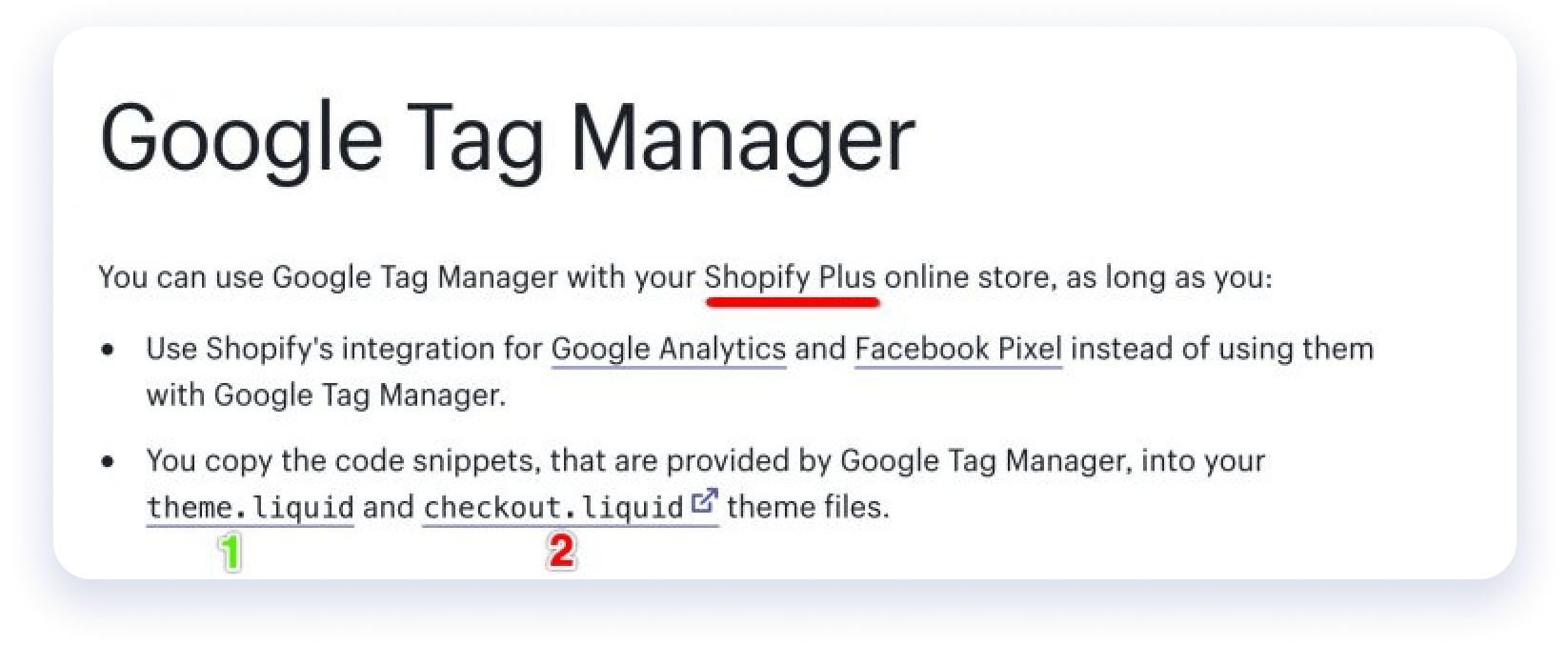
There are two key elements/areas to cover when adding the code to Shopify:
- ‘theme.liquid’ (which is essentially all non-checkout pages): you can access and modify ‘theme.liquid’ even if you have a non-plus Shopify account. Follow the instructions from the Shopify guide to add GTM to ‘theme.liquid’
- ‘checkout.liquid’ (which controls the code on checkout pages): it can only be accessed by Shopify Plus account users.
The challenge is how to add GTM container to the checkout pages if you do not have a Plus account.
The not-so-good news is that you can’t add a GTM container to checkout pages (if you don’t have Shopify Plus). The good news is that GTM can be added to the order confirmation page.
Adding GTM Container to Shopify Order Confirmation Page
Here is the solution to adding a GTM container the Shopify order confirmation page (for non-Plus account holders):
- Navigate to Settings (left-hand-side navigation menu) -> Checkout -> Order Processing
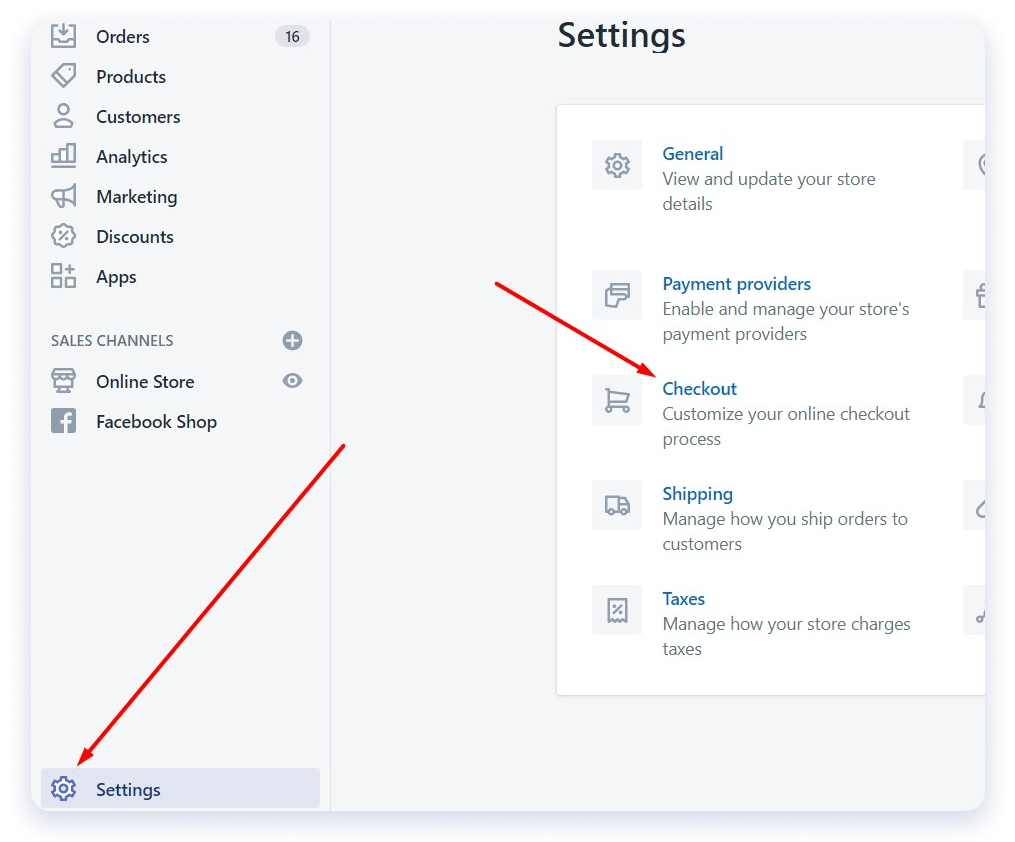
- Copy and paste your GTM container snippet into the ‘Additional scripts’ section
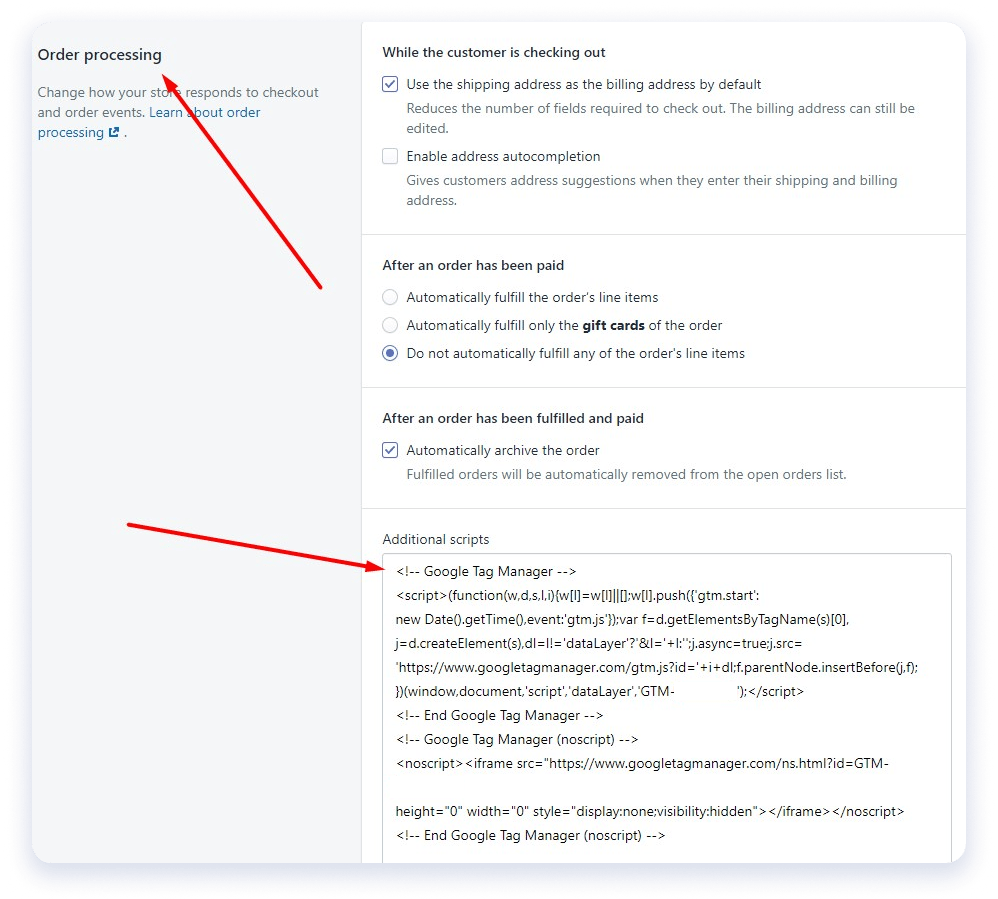
Save the settings and run the debug to ensure the container is working properly
Get Help to Add GTM Snippet to Shopify (Non-Plus)
Adding a Google Tag Manager snippet to your Shopify website can be daunting, but the rewards are plentiful. We recommend giving our team a call if you’re having difficulty. Our staff of experts has plenty of experience with the process and will provide you with a free consultation to go over potential solutions that can help streamline your success. We hope this article helped inspire you to take the plunge and get in touch with us; we look forward to speaking with you soon!
Further reading: Passing Customers’ Data to Google Analytics from Shopify